
Why in Tarnation is My Wi-Fi So Slow? Part 3: Top 10 Reasons why your Wi-Fi has low Throughput
No sections available
No sections available
Welcome to blogisode # 3 in the ‘Why in Tarnation is My Wi-Fi So Slow’ series! I have to admit, this is the blogisode I was most excited AND nervous to write. Excited because I aim to provide a picture of the main impediments that impact Wi-Fi throughput that will also hopefully give you an overall better understanding of Wi-Fi technology. Nervous because it is a lot of technical information that is pretty difficult to present in an understandable and concise way… Hopefully, this will be a valuable resource for you and provide you with more insight into the world of Wi-Fi.
Welcome to blogisode # 3 in the ‘Why in Tarnation is My Wi-Fi So Slow’ series! I have to admit, this is the blogisode I was most excited AND nervous to write. Excited because I aim to provide a picture of the main impediments that impact Wi-Fi throughput that will also hopefully give you an overall better understanding of Wi-Fi technology. Nervous because it is a lot of technical information that is pretty difficult to present in an understandable and concise way… Hopefully, this will be a valuable resource for you and provide you with more insight into the world of Wi-Fi.
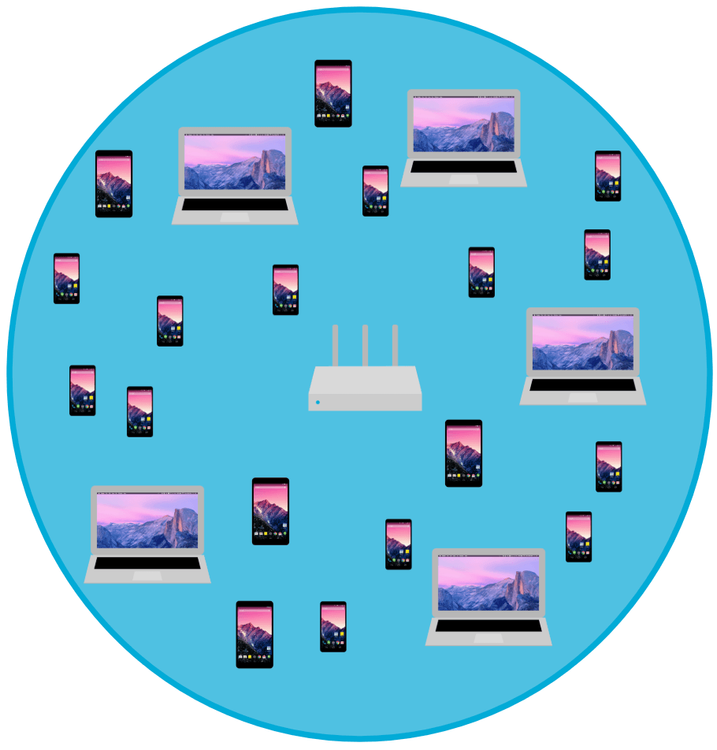
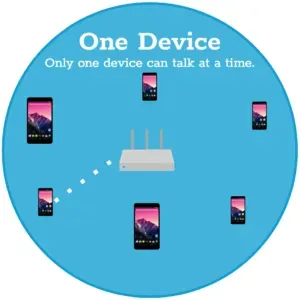
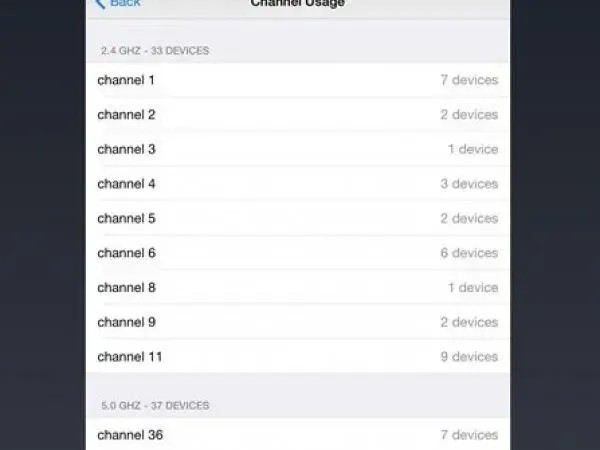
Going back to the dinner table conversation, let’s say that you really, really, really, want to say something. However, someone is already talking and they are talking about someone else who will then likely provide their response. What you are feeling is the contention nature of a half duplex conversation. You will need to contend for airtime to speak with everyone else at the table. Sounds frustrating? Oh, yea. If the table consists of you and 3 other people, then you will have a relatively easy time contending for speaking time. However, if you are sharing a table with 10, 15, or 20 or more people, then the longer you will have to wait until it is your turn to speak (likely why I prefer to eat alone…). This then becomes an issue of capacity. With Wi-Fi, the more client devices that are associated to an access point, the more clients utilizing the same channel, and the more clients actively contending for time, then the longer it will take for your turn to speak – hence, lower throughput.
The Tools:
Use Eye P.A. to see how many APs and devices are utilizing a channel and what the AP to client relationship looks like
Use inSSIDer or Air Viewer to locate the channels with the fewest Wi-Fi networks
The Fix:
Minimize the number of client devices associated to the AP
Add another AP (utilizing a different channel) if unable to minimize client devices
Update the AP to broadcast on the channel with the fewest Wi-Fi networks
You picked a bad spot to place your Access Point and have low signal strength
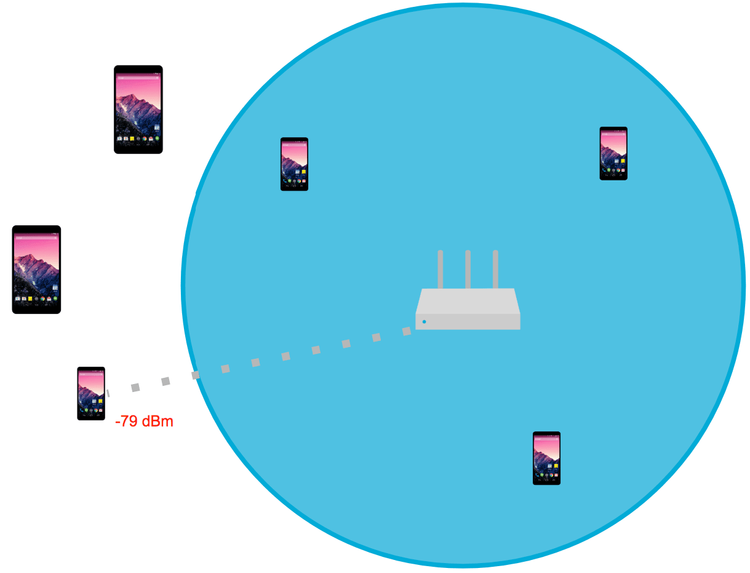
APs and clients must be able to hear each other well enough to understand what the other is saying in order to have effective communication. The further away a connected device is from their associated AP and the more physical barriers between them, such as the walls in your home, the weaker the received signal will be and the more throughput will be impacted. Signal strength is measured in units of negative decibel-milliwatts (dBm), which indicates the received power level of a transmitting device at the point of the receiving device. It is a way of describing how well you can hear someone after factoring in distance and physical barriers. The closer someone is to you and the fewer the barriers, the more likely you will be able to hear them and make out what they are saying.
With signal strength, your throughput will likely suffer when the reading is under -67 dBm. We recommend signal strength to be above -65 dBm for most internet usage. The ‘loudest’ signal strengths, achieved when the AP and clients are physically right next to each other, will see a signal strength around -30 dBm. One last little factoid, for every -3 dBm decrease in signal strength, that equates to losing half of the signal strength. Half! It’s logarithmic.
The Tools:
Use inSSIDer or Air Viewer to measure your AP’s signal strength at the locations where you use Wi-Fi the most
The Fix:
Move the AP closest to where you use Wi-Fi the most
If you have stationary devices (XBOX, TV, Desktops) and are able to plug in the ethernet line, plug in the ethernet line
If you still are experiencing poor coverage in the areas you use Wi-Fi the most, consider adding an additional AP or a Wi-Fi extender
The Additional Resources:
Understanding Wi-Fi Signal Strength
The AP antennas are not positioned correctly
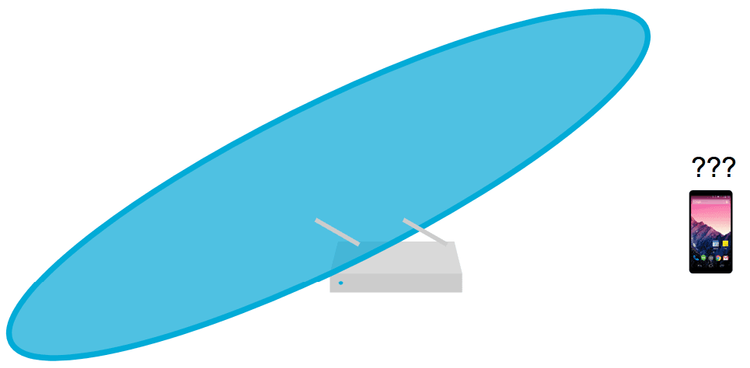
Antennas broadcast Wi-Fi signals and there are many different types of antennas. Some antennas are external, some are internal, some spread a signal in all directions, and some spread a signal in a concentrated direction. Some APs are made to sit on top of a horizontal surface, some are made to be on the side of the wall, and some are made to hang from the ceiling. The antennas are designed to spread Wi-Fi signals in certain directions and in certain patterns, so it is important that you place the AP as intended by the AP manufacturer. Also, if your AP has external antennas that are adjustable, make sure they are adjusted appropriately per the user manual, otherwise you may be dooming your Wi-Fi unintentionally.
The Tools:
Use inSSIDer or Air Viewer to see if you are getting signal strength where you expect to have a strong signal strength
The AP’s user manual
The Fix:
Refer to the AP user manual to ensure that you setup the AP and external antennas (when applicable) appropriately
You have legacy device issues
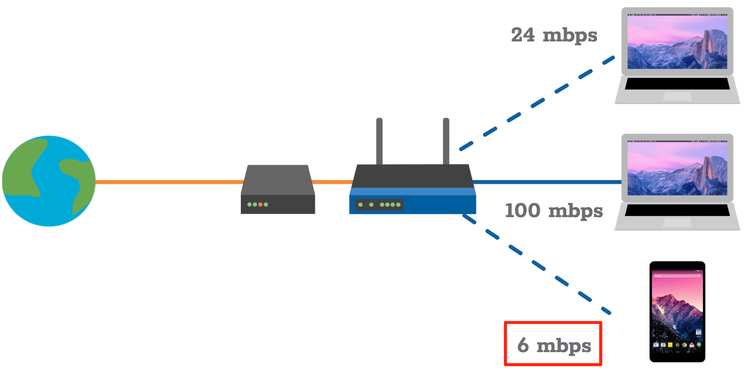
802.11 describes a suite of standards for wireless local area networks that is governed by the Institute of Electrical and Electronics Engineers (IEEE) – view http://www.ieee802.org/11/ for more information. Essentially, think of 802.11 as ‘Wi-Fi’ and 802.11a/b/g/n/ac as the main Wi-Fi iterations of standards for Wi-Fi chipsets that are in the Wi-Fi devices that we use. The 802.11ax standard is up-in-coming; but, will not be referenced in this blogisode. Depending on which standard the chipset in your AP follows and the chipset in your client device follows, you may not be getting the full throughput potential that you could be getting. If you have a device on your network using an older standard, then you will experience lower throughput not only with that device, but with all other devices associated to the same AP.
In general, if your devices use 802.11a/b/g standards, then expect throughput over Wi-Fi to be cut in half or even by more than half. If your devices use 802.11n/ac, then expect throughput to go down by roughly 30%.
Here is a quick reference for the max potential data rates for each Wi-Fi standard mentioned above:
802.11 (2.4GHz, released 1997): 2 Mbps
802.11b (2.4GHz, released 1999): 11 Mbps
802.11a (5 GHz, released 1999): 54 Mbps
802.11g (2.4GHz, released 2003): 54 Mbps
802.11n (2.4 GHz / 5 GHz, released 2009): 600 Mbps
802.11ac (5 GHz, released 2013): 6.93 Gbps
Note that 802.11n and 802.11ac data rate potentials are quite high; 7 Gbps download sounds pretty awesome! Unfortunately, these rates are not yet achievable… But, one day…
The Tools:
Use Eye P.A. to see what the effective data rates are for APs
Use inSSIDer to see what 802.11 standards are supported by an AP and what the max data rate is
The Fix:
If you do not have 802.11b devices on your Wi-Fi network, access your AP’s control panel and disable lower data rates
Consider investing in newer APs and client devices that are 802.11n/ac enabled
You are relying too much on 2.4 GHz and not enough on 5 GHz
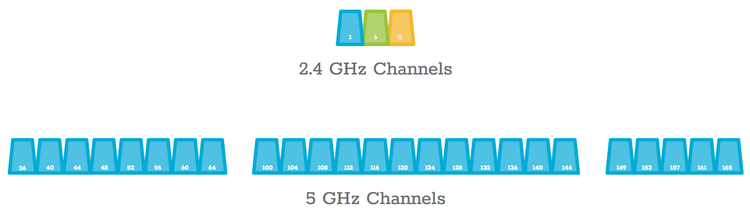
Traditional Wi-Fi channels are set to 20 MHz widths. 802.11n and 802.11ac introduced channel bonding which allows 2, 4, and 8 adjacent channels to be bonded with each other to allow for more data transfer capacity – increasing upload and download speeds. The 2.4 GHz spectrum can allow for 2 channel bonding to create a width of 40 MHz; however, due to the overlapping nature of the 5 MHz channel widths in the 2.4 GHz band, it is highly recommended not to use 40 MHz wide channels in the 2.4 GHz band due to higher congestion, overlapping, and co-channel interference issues that will be experienced in most Wi-Fi environments. So, be a good neighbor! The 5 GHz band allows for 40 MHz, 80 MHz, and 160 MHz wide channels with channel bonding; however, having channels more than 40 MHz wide is not recommended as it reduces channel planning capabilities and increases co-channel interference issues. Also, some channels are used by neighboring Wi-Fi networks more than others. Highly congested channels will impact your throughput performance.
The Tools:
Use inSSIDer or Air Viewer to see how many other networks are using the same channel as well as what the channel widths are
The Fix:
Ensure that 2.4 GHz networks are set to only 20 MHz channel widths
For 5 GHz, if you can get away with using 80 / 160 MHz channel widths, then by all means do so; otherwise, stick to 20 / 40 MHz channel widths
The Additional Resources:
40 MHz Channels
802.11ac Channels
Choosing a Wi-Fi channel
You purchased the wrong internet plan
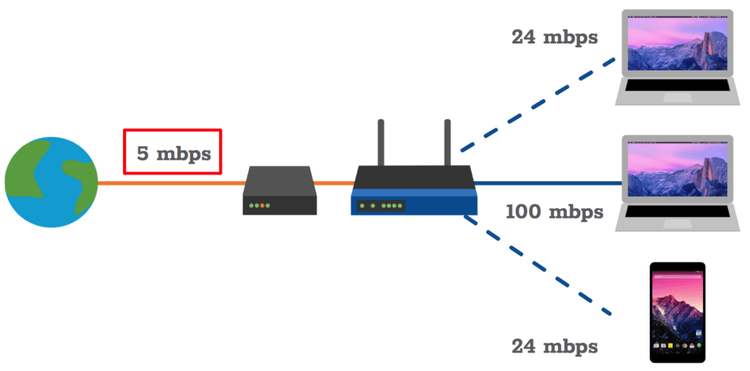
Did you purchase a plan that offers 5 Mbps download speeds and you have a family that loves streaming video at the same time on their own personal devices? Then, you may have purchased a plan that does not provide the download speeds that fit your needs…
The Tools:
Use an internet speed test service to run a throughput test to see what your download and upload speeds are where you use Wi-Fi the most
The Fix:
Check your internet plan and consider upgrading if you are not getting the max throughput speeds that will meet your needs
There is too much management overhead – the helicopter parent of Wi-Fi
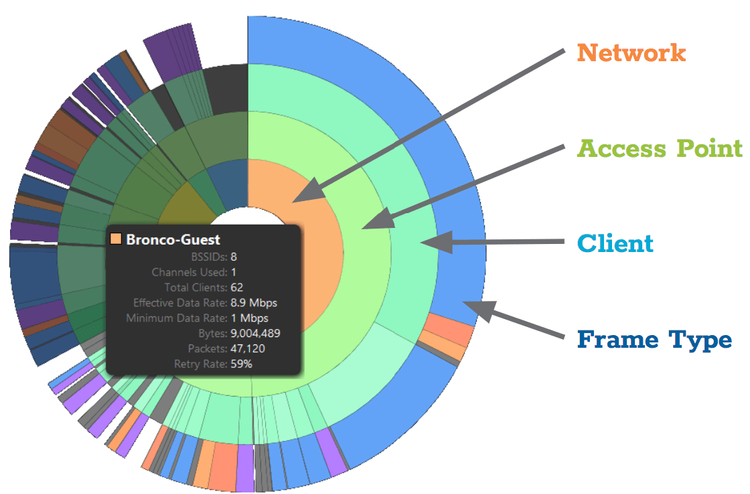
Did you know that a wireless AP does more than just transmit and receive data from the internet and connected devices? If you didn’t know this before you do now since you just read it. Wi-Fi gurus say that up to 50% of Wi-Fi traffic can be made up of Wi-Fi management overhead alone. This management traffic consists of broadcasting network information to potential clients, handling client associations, authentications, etc. To make matters worse, the main offenders of management overhead are required to deliver information at legacy data rates so that they are backwards compatible with older devices.
The Tools:
Use Eye P.A. to visualize the percentage of management frames vs data frames
The Fix:
Set your network to a Wi-Fi channel with a minimum number of neighboring networks
If you are using multiple virtual SSIDs (Wi-Fi network names) then reduce those to the bare minimum
If you do not have 802.11b devices on your Wi-Fi network, access your AP’s control panel and disable lower data rates
The Additional Resources:
Too many virtual SSIDs
There is too much interference from other Wi-Fi networks and from non-Wi-Fi interferers
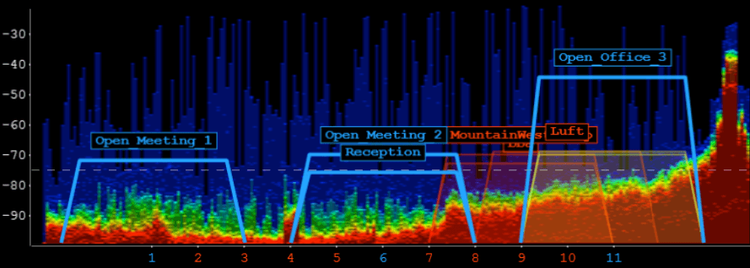
Much of this blogisode spoke of Wi-Fi interference of other Wi-Fi networks in the form of co-channel interference, when multiple Wi-Fi networks are broadcasting on the same channel, and adjacent channel interference, which is present on the 2.4 GHz band due to the smaller channel widths (2.4 GHz has 5 MHz wide channels and typical Wi-Fi frequencies broadcast 20 MHz wide signals whereas 5 GHz channels are 20 MHz wide, and therefore we typically say that 5 GHz does not have adjacent channel interference). Co-channel interference obviously can be an issue, but devices on the same channel at least can understand each other and act politely. On the other hand, adjacent channel interference is more of an issue because overlapping networks will not understand each other. It is like speaking English to someone who only knows Spanish.
Wi-Fi is not the only technology that uses the 2.4 GHz and 5 GHz bands. Non-Wi-Fi interference is not going to play ball with any Wi-Fi device; as it is not Wi-Fi. It would be like the fire alarm going off in a restaurant – it will impact all conversations in range and can bring down conversation altogether. Typical non-Wi-Fi interferers are microwave ovens, baby monitors, cordless telephones, ZigBee, Bluetooth, video cameras, wireless speakers, and poorly shielded cabling.
The Tools:
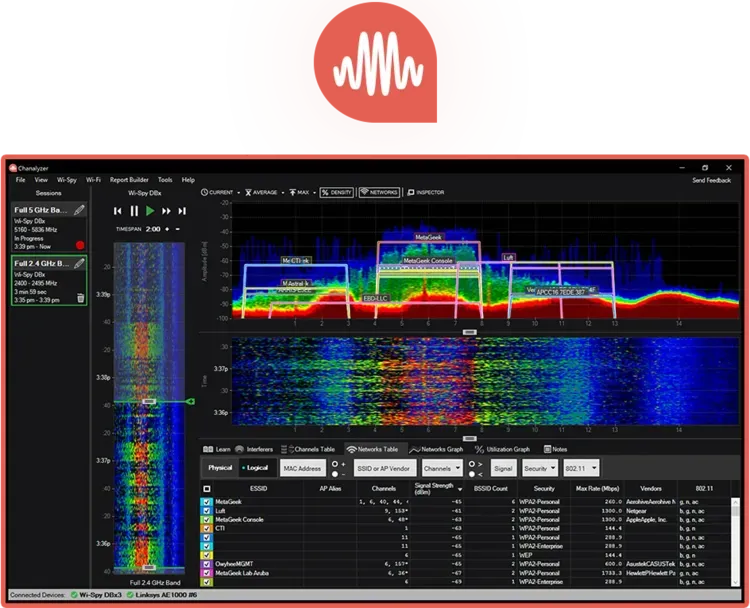
Use Chanalyzer with the Wi-Spy DBx to visualize Wi-Fi and non-Wi-Fi interference
Use inSSIDer or Air Viewer with Wi-Spy DBx to view channel utilization
Use Device Finder 2.4 GHz Directional Antenna to locate sources of non-Wi-Fi interference
The Fix:
If non-Wi-Fi interference is present, see if the interferer can be located and removed
Select a Wi-Fi channel with the least amount of utilization and interference
The Additional Resources:
Wi-Fi and Non-Wi-Fi Interference Examples
Enter your email to subscribe to our newsletter and receive updates.

At Oscium, we've spent over 16 years turning complex technology into tools that
work better for everyone.


©2026 OSCIUM. All Rights Reserved.