
How To View SSID’s On iOS
Ever wanted to view SSID’s on your iPhone or iPad but can’t seem to find an app that will do it? There are a couple of options available to you: one is free and one is not.
The Free Option – SSID’s on iOS
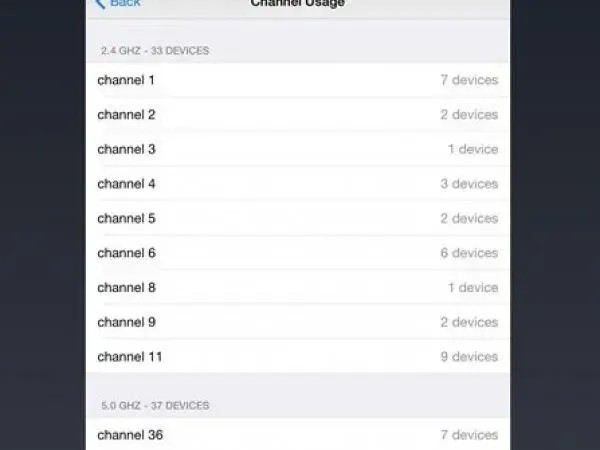
It’s not as sexy as the options available on Android but it’s better than nothing. And it’s free! It’s called the Airport Utility and here’s a quick tutorial on how to get it working:
Apple_iPad_Air_Utility.docx – word version of what is represented below but with pretty graphics (so consider using the word document).
 Download Airport Utility from App Store.
- Go to Settings Icon.
- Go To Airport Utility & turn on Wi-Fi Scanner.
- Load Airport Utility App.
- Select hyperlink in top right corner called “Wi-Fi Scan”.
- Then, select hyperlink in top right corner again called Scan..
- Finally, select hyperlink in top right corner again called Stop.
It’s not a graphical representation but it does provide RSSI, channel # and mac address of each radio.
The Full Option – SSID’s on iOS
It is also possible to view SSID’s graphically but that option is not free. Oscium has filled the gap by creating additional hardware, called WiPry 5x, with our own network card externally in our device all so that you can graphically view SSID’s on iOS. We felt like it was that important. Then, paired that with a dual band Wi-Fi spectrum analyzer so that only one tool is needed to troubleshoot Wi-Fi. Of course, it works any device you have including iOS, Android, PC and Mac. More information on WiPry 5x is available by clicking here.
Enter your email to subscribe to our newsletter and receive updates.

At Oscium, we've spent over 16 years turning complex technology into tools that
work better for everyone.


©2026 OSCIUM. All Rights Reserved.